고급 선택자에선 부모 자식 확인이 먼저
p태그에 파란색을 적용하고 싶다
<!DOCTYPE html>
<html lang="ko">
<head>
  <meta charset="UTF-8">
  <title>고급 선택자</title>
  <style>
    body {
      background-color:#eee;
    }
    section {
      width:600px;
      margin:20px auto;
    }
    p {
      width:500px;
      padding:10px;
      background-color:#fff;
      border:1px solid #ccc;
      line-height:2;
    }

    /* Do it! section 요소의 모든 하위 p 요소의 스타일 바꾸기 */
   section p {
      color:blue;   /* 글자색을 파란색으로 */
    }
  </style>
</head>
<body>
  <section>
    <h1>예약 방법 & 사용 요금</h1>
    <p>아직 온라인 예약 신청이 준비되어 있지 않습니다. <br>전화(xxx-xxxx-xxxx)로 문의 바랍니다.</p>
    <div>
      <p>가족실(2~4인) : 60,000원/일</p>
      <p>도미토리(4인 공용) : 25,000원/일</p>
      </div>
  </section>
</body>
</html>
섹션의 직계자식한테만 파란색을 적용하고 싶다
@@ > @@ 이 부모의 자식만 적용 가능함
@@ > @@ > @@ 손주만 적용도 가능함
<!DOCTYPE html>
<html lang="ko">
<head>
  <meta charset="UTF-8">
  <title>고급 선택자</title>
  <style>
    body {
      background-color:#eee;
    }
    section {
      width:600px;
      margin:20px auto;
    }
    p {
      width:500px;
      padding:10px;
      background-color:#fff;
      border:1px solid #ccc;
      line-height:2;
    }

    /* Do it! section 요소의 자식 p 요소의 스타일 바꾸기 */
    section > p {  /* section 요소의 자식 p 요소에 적용 */
      color:blue;  /* 글자색을 파란색으로 */
    }
  </style>
</head>
<body>
  <section>
    <h1>예약 방법 & 사용 요금</h1>
    <p>아직 온라인 예약 신청이 준비되어 있지 않습니다. <br>전화(xxx-xxxx-xxxx)로 문의 바랍니다.</p>
    <div>
      <p>가족실(2~4인) : 60,000원/일</p>
      <p>도미토리(4인 공용) : 25,000원/일</p>
  </section>
</body>
</html>
html
<!DOCTYPE HTML>
<html lang="ko">
<head>
  <meta charset="UTF-8">
  <title>회원 가입</title>
  <link rel="stylesheet" href="css/mysoul.css">
</head>
<body>
  <form id="signup">
    <fieldset>
      <legend>로그인 정보</legend>
      <ul>
        <li>
          <label for="userid">아이디</label>
          <input id="userid" name="userid" type="text" required autofocus>
        </li>
        <li>
          <label for="pwd1">비밀번호</label>
          <input id="pwd1" name="pwd1" type="password"  required>
        </li>
        <li>
          <label for="pwd2">비밀번호 확인</label>
          <input id="pwd2" name="pwd2" type="password" required>
        </li>
        <li>
          <label for="level">회원 등급</label>
          <input id="level" name="level" type="text" readonly value="준회원">
        </li>
      </ul>
    </fieldset>
    <fieldset>
      <legend>개인 정보</legend>
      <ul>
        <li>
          <label for="fullname">이름</label>
          <input id="fullname" name="fullname" type="text" placeholder="5자미만 공백없이" required>
        </li>
        <li>
          <label for="email">메일 주소</label>
          <input id="email" name="email" type="email" placeholder="abcd@domain.com" required autocomplete="off">
        </li>
        <li>
          <label for="tel">연락처</label>
          <input id="tel" name="tel" type="tel" autocomplete="off">
        </li>
      </ul>
    </fieldset>
    <fieldset>
      <button type="submit"> 제출 </button>
    </fieldset>
  </form>
</body>
</html>
부모 입장 - 패딩 (중앙정렬을 못해서 플렉스가 나왓어용)
자식 입장 - 마진
가급적 마진보단 부모의 패딩으로 처리 (일반적으로 많이 쓰임)
마진과 패딩을 섞어서 쓰면 컨트롤이 힘들어진다
* {
	margin: 0;
	padding: 0;
}

body {
	background: #ccc;
	padding: 20px;
}

#signup { /* 폼태그 자체에 연결되어있음 */
	background:#fff;
	border:1px solid #222;
	border-radius: 5px;
	padding: 20px;
	width: 400px;	/* 모바일로 가게된다면 고정되어있어서 문제가 생길 수 있음 */
	margin:30px auto;
}

#signup fieldset {
	border: 1px solid #ccc;
	margin-bottom: 30px;
}

#signup legend {
	font-size: 16px;
	font-weight: bold;
	padding-left:5px;
	padding-bottom: 10px;
}

#signup ul li {
	line-height: 30px;
	list-style: none;
	padding: 5px 10px;
	margin-bottom: 2px;
}

#signup button {
	border: 1px solid #222;
	border-radius: 20px;
	display: block;
	font-size: 16px 맑은고딕,굴림,돋움;
	letter-spacing: 1px;
	margin: auto;
	padding: 7px 25px;
}

#signup label {
    float: left;
    font-size: 13px;
    width: 110px;
}
a[href] {프로퍼티 셀렉터
<a href="#"> 어디로 보낼지 정확하지 않을때 임시방편으로 # 사용 (기능은 페이지를 리로드함)
<!DOCTYPE html>
<html lang="ko">
<head>
<meta charset="UTF-8">
<title>속성 선택자</title>
<style>
   ul {
		 list-style:none;
   }
	 li {
		 width:120px;
		 display:inline-block;
		 margin:10px;
	 }
		li a {
			padding: 5px 20px;
			font-size: 14px;
			text-decoration: none;
			font-weight: bold;
		}

		/* Do it! href 속성이 있는 a 요소의 스타일 지정하기 */
	 	a[href] {
			background:yellow;  /* 배경색 지정 */
		 	border:1px solid #ccc;  /* 테두리 지정 */
		 	font-weight:normal;  /* 글자 굵기 지정 */
	 	}
</style>
</head>

<body>
	<ul>
		<li><a>메인 메뉴 : </a></li>
		<li><a href="#">메뉴 1</a></li>
		<li><a href="#">메뉴 2</a></li>
		<li><a href="#">메뉴 3</a></li>
		<li><a href="#">메뉴 4</a></li>
	</ul>
  </body>
</html><!DOCTYPE HTML>
<html lang="ko">
<head>
<meta charset="UTF-8">
<title>회원 가입</title>
<link rel="stylesheet" href="css/register2.css">
</head>
<body>
<form id="signup">
<fieldset>
<legend>로그인 정보</legend>
<ul>
<li>
<label for="userid">아이디</label>
<input id="userid" name="userid" type="text" required autofocus>
</li>
<li>
<label for="pwd1">비밀번호</label>
<input id="pwd1" name="pwd1" type="password" required>
</li>
<li>
<label for="pwd2">비밀번호 확인</label>
<input id="pwd2" name="pwd2" type="password" required>
</li>
<li>
<label for="level">회원 등급</label>
<input id="level" name="level" type="text" readonly value="준회원">
</li>
</ul>
</fieldset>
<fieldset>
<legend>개인 정보</legend>
<ul>
<li>
<label for="fullname">이름</label>
<input id="fullname" name="fullname" type="text" placeholder="5자미만 공백없이" required>
</li>
<li>
<label for="email">메일 주소</label>
<input id="email" name="email" type="email" placeholder="abcd@domain.com" required autocomplete="off">
</li>
<li>
<label for="tel">연락처</label>
<input id="tel" name="tel" type="tel" autocomplete="off">
</li>
</ul>
</fieldset>
<fieldset>
<button type="submit"> 제출 </button>
</fieldset>
</form>
</body>
</html>* {
margin: 0;
padding: 0;
}
body {
background: #ccc;
padding: 20px;
}
#signup {
background:#fff;
border:1px solid #222;
border-radius: 5px;
padding: 20px;
width: 400px;
margin:30px auto;
}
#signup fieldset {
border: 1px solid #ccc;
margin-bottom: 30px;
}
#signup legend {
font-size: 16px;
font-weight: bold;
padding-left:5px;
padding-bottom: 10px;
}
#signup ul li {
line-height: 30px;
list-style: none;
padding: 5px 10px;
margin-bottom: 2px;
}
#signup button {
border: 1px solid #222;
border-radius: 20px;
display: block;
font-size: 16px;
letter-spacing: 1px;
margin: auto;
padding: 7px 25px;
}
#signup label {
float: left; /* 왼쪽으로 배치 */
font-size: 13px; /* 글자 크기 - 13px */
width: 110px; /* 너비 - 110px */
}
/* 속성 선택자 사용 */
#signup input[type=text],
#signup input[type=password],
#signup input[type=tel],
#signup input[type=email] {
border: 1px solid #ccc; /* 텍스트 필드 테두리 지정 */
border-radius: 3px; /* 텍스트 필드 모서리를 둥글게 지정 */
font-size: 13px; /* 텍스트 필드 안의 글자 크기 지정 */
padding: 5px; /* 텍스트 필드와 내용 사이의 패딩 지정 */
width: 200px; /* 텍스트 필드 너비 지정 */
}
#signup input[required] { /* 필수 입력 필드의 스타일 */
border:1px red solid;
}
#signup input[readonly] { /* 읽기 전용 필드의 스타일 */
border:none;
}
<!DOCTYPE html>
<html lang="ko">
<head>
<meta charset="UTF-8">
<title>link 스타일</title>
<style>
  .container {
    width: 960px;
    margin : 0 auto;
  }
  .navi{
    width:960px;
    height:60px;
    padding-bottom:10px;
    border-bottom:2px solid #ccc;
  }
  .navi ul{
    list-style: none;
    padding-top:10px;
    padding-bottom:5px;
  }
  .navi ul li {
    float:left;
    width:150px;
    padding:10px;
  }

  /* Do it! 가상 선택자를 사용해 링크 스타일 지정하기 */
  .navi a:link, .navi a:visited{
    display:block;
    font-size:14px;
    color:#000;
    padding: 10px;
    text-decoration: none;  /* 밑줄 없앰 */
    text-align: center;
  }
  .navi a:hover,  .navi a:focus {
    background-color:#222;  /* 배경 색 */
    color:#fff;  /* 글자 색 */
  }
  .navi a:active {
    background-color:#f00;  /* 배경 색 */
  }
</style>
</head>

<body>
<div class="container">
    <nav class="navi">
      <ul>
        <li><a href="#">이용 안내</a></li>
        <li><a href="#">객실 소개</a></li>
        <li><a href="#">예약 방법 및 요금</a></li>
        <li><a href="#">예약하기</a></li>
      </ul>
    </nav>
  </div>
</body>
</html>
#signup input:checked + label 체크하면 레이블에 디자인을 적용
<!DOCTYPE HTML>
<html lang="ko">
<head>
  <meta charset="UTF-8">
  <title>가상 선택자</title>
  <style>
    .container {
      width: 960px;
      margin : 0 auto;
    }
    .navi{
      width:960px;
      height:60px;
      padding-bottom:10px;
      border-bottom:2px solid #ccc;
    }

    .navi ul{
      list-style: none;
      padding-top:10px;
      padding-bottom:5px;
    }
    .navi ul li {
      display:inline-block;
      width:150px;
      padding:10px;
    }
    .navi a:link, .navi a:visited {
      font-size:14px;
      padding: 10px;
      text-decoration: none;  /* 밑줄 없음 */

    }
    .navi a:hover,  .navi a:focus {
      background-color:#222;  /* 배경색 */
      color:#fff;  /* 글자색 */
    }

    .navi a:active {
      background-color:#f00;  /* 배경색 */
    }

    #signup {
      background:#fff;
      border:1px solid #222;
      border-radius: 5px;
      padding: 20px;
      width: 400px;
      margin:30px auto;
    }

    #signup fieldset {
      border: 1px solid #ccc;
      margin-bottom: 30px;
    }

    #signup legend {
      font-size: 16px;
      font-weight: bold;
      padding-left:5px;
      padding-bottom: 10px;
    }

    #signup ul li {
      line-height: 30px;
      list-style: none;
      padding: 5px 10px;
      margin-bottom: 2px;
    }

    #signup fieldset:first-of-type label {
      float: left;
      font-size: 13px;
      width: 60px;
    }

    #signup input[type=text], input[type=tel] {
      border: 1px solid #ccc;
      border-radius: 3px;
      padding: 5px;
      width: 200px;
    }

    #signup button {
      border: 1px solid #222;
      border-radius: 20px;
      display: block;
      font: 16px 맑은고딕,굴림,돋움;
      letter-spacing: 1px;
      margin: auto;
      padding: 7px 25px;
    }

    #signup b {
      float: left;
      font-size: 13px;
      width: 110px;
    }

    /* Do it! 라디오 버튼을 클릭했을 때 label 스타일 지정하기 */
    #signup input:checked + label {
      color:red;  /* 글자색 */
      font-weight:bold;  /* 글자 굵게 */
    }
  </style>
</head>
<body>
  <div class="container">
    <nav class="navi">
      <ul>
        <li><a href="ps-1.html#intro">이용 안내</a></li>
        <li><a href="ps-1.html#room">객실 소개</a></li>
        <li><a href="ps-1.html#reservation">예약 방법 및 요금</a></li>
        <li><a href="ps-2.html">예약하기</a></li>
      </ul>
    </nav>

    <form id="signup">
      <fieldset>
        <legend>개인 정보</legend>
        <ul>
          <li>
            <label for="fullname">이름</label>
            <input id="fullname" name="fullname" type="text" required>
          </li>
          <li>
            <label for="tel">연락처</label>
            <input id="tel" name="tel" type="tel">
          </li>
        </ul>
      </fieldset>
      <fieldset>
        <legend>객실 형태</legend>
        <ul>
          <li>
            <input type="radio" name="room" id="basic">
            <label for="basic">기본형(최대 2인)</label>
          <li>
          <li>
            <input type="radio" name="room" id="family">
            <label for="family">가족형(최대 8인)</label>
          </li>
        </ul>
      </fieldset>
      <button type="submit"> 제출 </button>
    </form>
  </div>
</body>
</html>
특정 자식 요소만 적용하고 싶을때
추천은 안함 잘못하면 꼬임
추천: first, last, nth
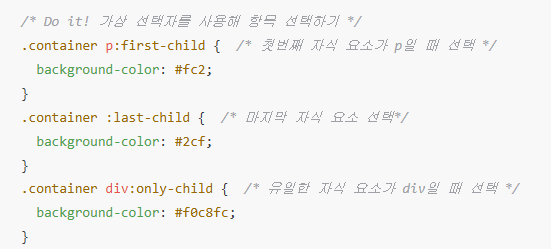
컨테이너 부모 p혹은 div자식
<!DOCTYPE html>
<html lang="ko">
<head>
  <meta charset="UTF-8">
  <meta name="viewport" content="width=device-width, initial-scale=1.0">
  <title>가상 선택자</title>
  <style>
    body {
      display: flex;
      flex-direction: column;
      justify-content: center;
      align-items: center;
      height: 100vh;
      gap: 20px;
    }
    .container {
      width: 300px;
      padding: 20px;
      border: 1px solid #ccc;
      border-radius: 5px;
      text-align: center;
    }

    /* Do it! 가상 선택자를 사용해 항목 선택하기 */
    .container p:first-child {  /* 첫번째 자식 요소가 p일 때 선택 */
      background-color: #fc2;
    }
    .container :last-child {  /* 마지막 자식 요소 선택*/
      background-color: #2cf;
    }
    .container div:only-child {  /* 유일한 자식 요소가 div일 때 선택 */
      background-color: #f0c8fc;
    }
  </style>
</head>
<body>
  <div class="container">
    <p>첫 번째</p>
    <div>두 번째</div>
    <p>세 번째</p>
    <div>네 번째</div>
  </div>
  <div class="container">
    <div>혼자~</div>
  </div>
</body>
</html>
css 연산엔 0이 존재 (정수가 존재)
html 연산엔 0이 존재하지 않음 (자연수만 먹힘)
<!DOCTYPE html>
<html lang="ko">
<head>
  <meta charset="UTF-8">
  <meta name="viewport" content="width=device-width, initial-scale=1.0">
  <title>가상 선택자</title>
  <style>
    body {
      display: flex;
      justify-content: center;
      align-items: center;
      height: 100vh;
    }
    .container {
      width: 600px;
      display: flex;
      justify-content: space-between;
      align-items: center;
      gap: 5px;
    }
    .item {
      border: 1px solid #ccc;
      border-radius: 5px;
      padding: 20px;
    }

    /* Do it! 가상 선택자를 사용해 항목 선택하기 */

    /* 3번째 자식 요소 선택 */
    .container :nth-child(3) {
      background-color: #fc2;
    }

    /* 짝수번째 자식 요소 선택 */
    /* 2n : 2*0부터 연산해 나간다 */
    /* .container :nth-child(2n) {
      background-color: #fc2;
    } */

    /* 홀수번째 자식 요소 선택 */
    /* 2n+1 : 2*0+1, 2*1+1 순으로 연산해 나간다 */
    /* .container :nth-child(2n+1) {
      background-color: #fc2;
    } */

    /* 3의 배수번째 자식 요소 선택 */
    /* .container :nth-child(3n) {
      background-color: #fc2;
    } */

    /* 4번째 자식 요소부터 선택 */
    /* .container :nth-child(n+4) {
       background-color: #fc2;
    } */

    /* 4번째 자식 요소까지 선택 */
    /* .container :nth-child(-n+4) {
      background-color: #fc2;
    } */

    /* 3번째 자식 요소부터 5번째 자식 요소까지 선택 */
    .container :nth-child(n+3):nth-child(-n+5) {
      background-color: #fc2;
    }

  </style>
</head>
<body>
  <div class="container">
    <div class="item">1</div>
    <div class="item">2</div>
    <div class="item">3</div>
    <div class="item">4</div>
    <div class="item">5</div>
    <div class="item">6</div>
    <div class="item">7</div>
    <div class="item">8</div>
  </div>
</body>
</html>
.container p:nth-of-type(1)
컨테이너에 자식 요소중 p태그 중 첫째
.container div:nth-of-type(2)
컨테이너에 자식 요소중 div태그 중 둘째
<!DOCTYPE html>
<html lang="ko">

<head>
  <meta charset="UTF-8">
  <meta name="viewport" content="width=device-width, initial-scale=1.0">
  <title>가상 선택자</title>
  <style>
    body {
      display: flex;
      flex-direction: column;
      justify-content: center;
      align-items: center;
      height: 100vh;
      gap: 20px;
    }

    .container {
      width: 300px;
      padding: 20px;
      border: 1px solid #ccc;
      border-radius: 5px;
      text-align: center;
    }

    /* Do it! 가상 선택자를 사용해 항목 선택하기 */
    .container p:nth-of-type(1) {
      /* p 요소 중 첫번째 요소 선택 */
      background-color: #fc2;
    }

    .container div:nth-of-type(2) {
      /* div 요소 중 두번째 요소 선택*/
      background-color: #2cf;
    }
  </style>
</head>

<body>
  <div class="container">
    <p>첫 번째</p>
    <div>두 번째</div>
    <p>세 번째</p>
    <div>네 번째</div>
  </div>
</body>

</html>사인업 속 인풋 태그 디자인을 이렇게 하되 라디오 타입은 제외하고 적용
<!DOCTYPE HTML>
<html lang="ko">
<head>
  <meta charset="UTF-8">
  <title>가상 선택자</title>
  <style>
    .container {
      width: 960px;
      margin : 0 auto;
    }
    .navi{
      width:960px;
      height:60px;
      padding-bottom:10px;
      border-bottom:2px solid #ccc;
    }

    .navi ul{
      list-style: none;
      padding-top:10px;
      padding-bottom:5px;
    }
    .navi ul li {
      display:inline-block;
      width:150px;
      padding:10px;
    }
    .navi a:link, .navi a:visited {
      font-size:14px;
      padding: 10px;
      text-decoration: none;  /* 밑줄 없음 */

    }
    .navi a:hover,  .navi a:focus {
      background-color:#222;  /* 배경색 */
      color:#fff;  /* 글자색 */
    }

    .navi a:active {
      background-color:#f00;  /* 배경색 */
    }

    #signup {
      background:#fff;
      border:1px solid #222;
      border-radius: 5px;
      padding: 20px;
      width: 400px;
      margin:30px auto;
    }

    #signup fieldset {
      border: 1px solid #ccc;
      margin-bottom: 30px;
    }

    #signup legend {
      font-size: 16px;
      font-weight: bold;
      padding-left:5px;
      padding-bottom: 10px;
    }

    #signup ul li {
      line-height: 30px;
      list-style: none;
      padding: 5px 10px;
      margin-bottom: 2px;
    }

    #signup fieldset:first-of-type label {
      float: left;
      font-size: 13px;
      width: 60px;
    }

    /* Do it!  :not 선택자를 사용해 텍스트 필드 선택하기 */
    /* #signup input[type=text], input[type=tel] {
      border: 1px solid #ccc;
      border-radius: 3px;
      padding: 5px;
      width: 200px;
    } */

    #signup input:not([type=radio]) {
      border: 1px solid #ccc;
      border-radius: 3px;
      padding: 5px;
      width: 200px;
    }

    #signup button {
      border: 1px solid #222;
      border-radius: 20px;
      display: block;
      font: 16px 맑은고딕,굴림,돋움;
      letter-spacing: 1px;
      margin: auto;
      padding: 7px 25px;
    }

    #signup b {
      float: left;
      font-size: 13px;
      width: 110px;
    }

    #signup input:checked + label {
      color:red;  /* 글자색 */
      font-weight:bold;  /* 글자 굵게 */
    }
  </style>
</head>
<body>
  <div class="container">
    <nav class="navi">
      <ul>
        <li><a href="ps-1.html#intro">이용 안내</a></li>
        <li><a href="ps-1.html#room">객실 소개</a></li>
        <li><a href="ps-1.html#reservation">예약 방법 및 요금</a></li>
        <li><a href="ps-2.html">예약하기</a></li>
      </ul>
    </nav>

    <form id="signup">
      <fieldset>
        <legend>개인 정보</legend>
        <ul>
          <li>
            <label for="fullname">이름</label>
            <input id="fullname" name="fullname" type="text" required>
          </li>
          <li>
            <label for="tel">연락처</label>
            <input id="tel" name="tel" type="tel">
          </li>
        </ul>
      </fieldset>
      <fieldset>
        <legend>객실 형태</legend>
        <ul>
          <li>
            <input type="radio" name="room" id="basic">
            <label for="basic">기본형(최대 2인)</label>
          <li>
          <li>
            <input type="radio" name="room" id="family">
            <label for="family">가족형(최대 8인)</label>
          </li>
        </ul>
      </fieldset>
      <button type="submit"> 제출 </button>
    </form>
  </div>
</body>
</html>
구현 목표 & 결과물 요약 HTML의 구조를 임의로 변경하거나 불필요한 클래스를 남발하지 않고, CSS의 고급 선택자(계층, 속성, 가상 클래스)만을 활용하여 복잡한 회원가입 폼(Form)과 리스트 UI를 깔끔하게 디자인한다.
핵심 사용 기술 (Key Skills)
계층 및 속성 제어 자식 선택자 (>) - 부모 안의 직계 자식만 선택하여 의도치 않은 하위 요소의 스타일 오염을 방지함 속성 선택자 ([type="..."]) - HTML에 별도 클래스 부여 없이 input 태그의 텍스트, 비밀번호 등 특정 타입을 정밀하게 타겟팅함
상태 및 구조 가상 클래스 :checked - 라디오 버튼이 선택되었을 때, 인접 형제 선택자(+)와 결합하여 레이블의 색상과 굵기를 동적으로 변경함 :nth-child(n) - 짝수(2n), 홀수(2n+1), 특정 범위(n+3 등)의 수식을 사용하여 자식 요소들을 패턴에 맞게 디자인함 :not() - 특정 타입(예: 라디오 버튼)을 제외한 나머지 모든 input 요소에만 공통 테두리를 일괄적이고 효율적으로 적용함
학습 포인트 (회고) 고급 선택자를 적용할 때는 항상 HTML의 부모-자식 관계를 명확히 파악하는 것이 우선되어야 함을 확인했다. 특히 회원가입 폼처럼 요소가 많은 레이아웃을 중앙 정렬하거나 간격을 조절할 때, 자식 요소의 margin을 남발하기보다는 부모 요소에서 padding을 주어 통제하는 방식이 유지보수와 구조 관리에 훨씬 유리하다는 실무적인 감각을 익힐 수 있었다. 또한, input[type="text"]처럼 일일이 나열해야 했던 속성들을 :not([type="radio"]) 단 한 줄로 효율적으로 제어해 보면서 CSS 코드 다이어트의 중요성을 깨달았다.
'코딩 > CSS 실습' 카테고리의 다른 글
| [코드 연습장] CSS: transform 변형 함수와 transition 애니메이션 기초 실습 (0) | 2026.03.27 |
|---|---|
| [코드 연습장]CSS: 가상 요소와 다양한 CSS 함수(수학, 필터) 활용 (0) | 2026.03.26 |
| [코드 연습장] CSS: Flexbox 기초 정렬 실습 및 반응형 프로필 카드 만들기 (0) | 2026.03.23 |
| [코드 연습장]CSS: 상대 단위(em/rem)와 유동적 이미지(Fluid Image) 기초 실습 (0) | 2026.03.23 |
| [코드 연습장] CSS 배경 꾸미기 (background-size, linear-gradient 등) (0) | 2026.03.20 |